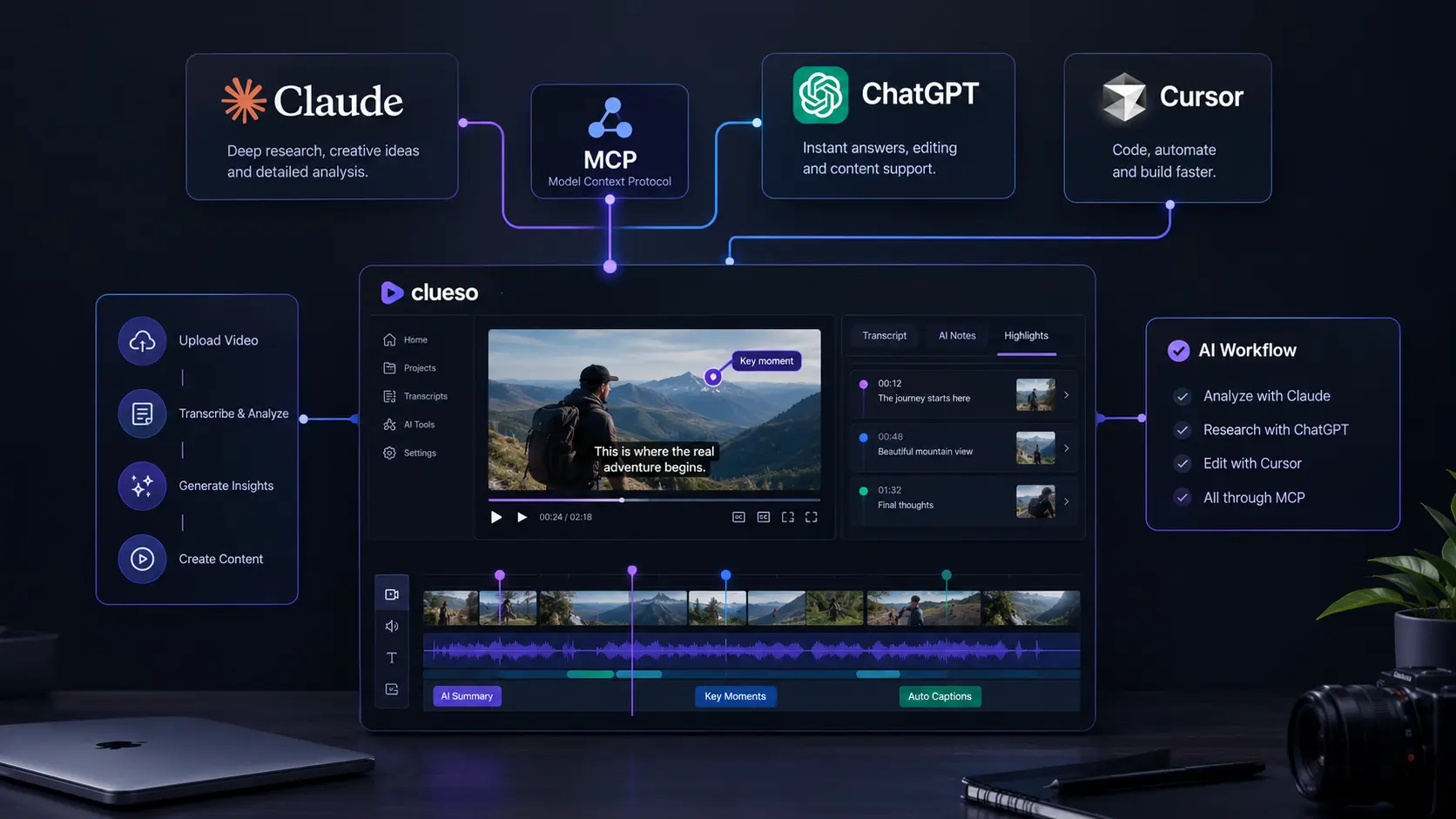
Clueso integration lets supported AI assistants connect with Clueso’s video creation and editing tools through the Model Context Protocol, or MCP. Instead of completing every video task manually, users can give natural-language instructions to an AI assistant and let it work with Clueso. Clueso also provides Agent Skills for common video workflows. These skills can help create videos from articles, edit existing videos, add captions, insert callouts, apply brand elements, and handle other video-production tasks. Clueso supports several AI environments, including Claude, ChatGPT, and Cursor. However, the setup process and available permissions are different for each platform.
What Is Clueso MCP?
Clueso MCP uses the Model Context Protocol to connect AI assistants with external tools. MCP is an open standard that allows an AI application to communicate with connected services and use their available capabilities. With Clueso MCP, compatible AI agents can access video-related functions. Depending on the available tools, these can include working with projects, clips, motion elements, AI voiceovers, and video exports.
This makes it possible to use natural-language instructions for video workflows. For example, you can ask an AI assistant to create a product walkthrough, turn an article into a narrated video, add captions, insert visual callouts, or make changes to an existing video project. The MCP connection provides the tool access, while Clueso Agent Skills provide additional instructions for specific workflows.
How to Set Up Clueso With Claude
The Clueso Claude integration uses Claude’s custom connector system.
The general setup process is:
- Open Claude.
- Go to Settings.
- Open Connectors.
- Select the option to add a custom connector.
- Create a connector for Clueso.
- Complete the Clueso authorization process.
- Return to Claude and confirm that the connector is available.
After the connection is active, Claude can access the available Clueso tools when they are enabled for the conversation.
Clueso With Claude Code
Clueso can also be used with Claude Code through MCP. The setup is different from the standard Claude interface because the MCP connection needs to be configured through Claude Code. After adding the connection, the authorization process can be completed through the browser. The exact configuration can change as Claude Code and Clueso update their MCP support, so current configuration requirements should be followed.
How to Set Up Clueso With ChatGPT
The Clueso ChatGPT integration works differently from the Claude and Cursor setup. ChatGPT’s custom MCP functionality depends on the account plan and workspace configuration. Full MCP functionality, including actions that create or modify content, is currently available for supported Business, Enterprise, and Edu environments.
For a supported workspace, the general process is:
- Open ChatGPT on the web.
- Open the relevant developer or app settings.
- Enable developer mode if it is available.
- Create or configure a custom MCP application.
- Add the required Clueso connection information.
- Complete the authorization process.
- Review the available Clueso tools.
- Save or publish the application according to the workspace requirements.
- Select the Clueso application when using it in a supported conversation.
Workspace administrators may need to approve the application or control which users can access it. Because ChatGPT’s MCP and custom app features continue to evolve, the exact settings and menu names can change.
ChatGPT MCP Permissions for Clueso
Permissions are an important part of the Clueso ChatGPT integration. Not every ChatGPT account has the same MCP capabilities. Some environments provide limited access, while supported business workspaces can provide broader functionality. This matters because many Clueso workflows require more than reading information. Creating or modifying videos requires the AI assistant to have the appropriate tool permissions. ChatGPT Agent mode should also not be confused with custom MCP applications. Custom apps have their own supported workflows and permissions.
How to Set Up Clueso With Cursor
The Clueso Cursor integration uses Cursor’s MCP support.
The general setup process is:
- Open Cursor.
- Open the MCP settings.
- Select the option to add a custom MCP server.
- Enter the Clueso MCP server information.
- Complete the Clueso authorization process.
- Confirm that the Clueso tools are enabled.
- Start a Cursor agent workflow that can use the connected tools.
Cursor’s interface can change between releases, so the current MCP settings should be used if the location of these options differs. Once Clueso is connected, Cursor can use the available tools as part of supported agent workflows.
Clueso Agent Skills Explained
The Clueso Agent Skills system is an important part of the integration. MCP provides access to Clueso’s tools, while Agent Skills provide reusable instructions for specific tasks. This means an AI assistant does not simply have access to video tools. It can also use predefined workflows designed around common video-production requirements.
Clueso’s Agent Skills can cover tasks such as:
- Creating videos
- Editing existing videos
- Adding animated captions
- Adding callouts and arrows
- Applying brand colors
- Adding logos
- Creating lower thirds
- Adding zoom effects
- Creating CTA end cards
- Turning documents and articles into videos
For example, an article-to-video workflow can take written content, develop it into a video script, organize the content into scenes, add narration, and prepare the resulting video.
What Can You Do With Clueso MCP?
Once the Clueso MCP integration is configured, you can use natural-language instructions for different video tasks.
Some examples include:
- Turn an article into a narrated video.
- Create a product walkthrough from written content.
- Add captions to an existing video.
- Highlight important areas of a screen recording.
- Add callouts and arrows.
- Add a logo or branded element.
- Apply brand colors.
- Create a CTA end screen.
- Build an animated explainer.
- Divide long training content into sections.
- Create localized versions of an existing video.
The goal is to make video production more conversational. Instead of manually completing every editing step, users can describe the desired result and let the connected AI tools handle supported actions.
Clueso MCP Troubleshooting
If the Clueso MCP connection does not work correctly, configuration and authorization are two areas to check first. Make sure the Clueso connection has been completed successfully and that the required tools are enabled. If Clueso does not appear after configuration, refreshing or restarting the AI application may help. You should also check whether your account or workspace has permission to use custom MCP tools.
ChatGPT users should pay particular attention to workspace permissions because administrators can control custom app access. The same principle applies to Claude and Cursor. Application interfaces can change, so older tutorials may show settings that are no longer located in the same place. Security is also important when using MCP. Connecting an external MCP service can give an AI assistant access to tools and actions. Users should understand what the connected service can access before authorizing it.
Why Use Clueso With AI Assistants?
The main benefit of connecting Clueso with Claude, ChatGPT, or Cursor is the ability to bring video creation into an existing AI workflow. Without an integration, users may need to switch between an AI assistant and a separate video editor for different parts of a project. With Clueso MCP, supported AI agents can interact with Clueso through connected tools. Agent Skills make this workflow more useful by providing instructions for repeatable tasks such as article-to-video creation, video editing, captions, motion effects, and branding.
This approach can be useful for product tutorials, customer education, training videos, software explainers, and other instructional content. The exact experience depends on the AI platform, account permissions, available Clueso tools, and the workflow being requested.
Frequently Asked Questions
Does Clueso MCP require an API key?
Clueso’s Agent Skills are designed to work through its MCP connection. The standard setup uses the hosted Clueso MCP service and an authorization process rather than requiring users to manually create an external API key.
Can I use Clueso with Claude, ChatGPT, and Cursor?
Yes. Clueso supports multiple AI environments, including Claude, ChatGPT, and Cursor. However, the setup process and available permissions can differ between platforms.
Can I use Clueso MCP with ChatGPT Free?
MCP availability depends on the ChatGPT plan and workspace configuration. Full write and modification functionality is not available across all ChatGPT plans, so users should check the MCP capabilities available to their account.
Does ChatGPT Agent mode support Clueso custom MCP apps?
Agent mode and custom MCP applications have different capabilities. Users should use the supported custom-app workflow when they need MCP tools to perform actions through Clueso.
What are Clueso Agent Skills?
Clueso Agent Skills are reusable instructions designed for specific workflows. They can help AI agents handle tasks such as video creation, video editing, captions, motion effects, branding, and article-to-video production.
Leave a Reply