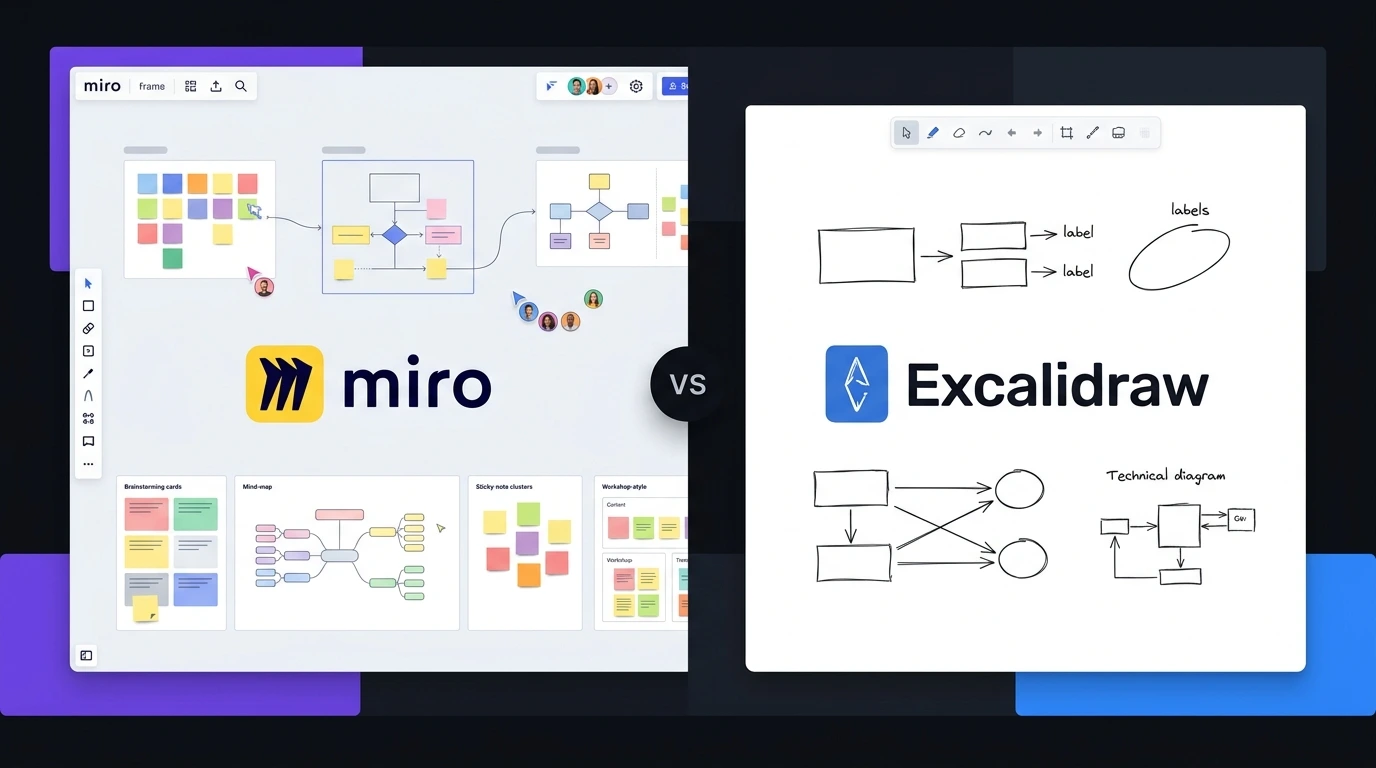
You can have a great idea and still struggle to explain it when everyone is staring at the same video-call grid. Remote teams often need more than chat messages and documents to brainstorm, map processes, sketch interfaces, or plan projects together. That is where visual collaboration tools become useful. Instead of describing every connection in words, you can put ideas directly onto a shared canvas. Two popular options take very different approaches: Miro gives you a feature-rich workspace built for structured collaboration, while Excalidraw focuses on fast, hand-drawn-style diagrams and simple visual communication. Both can work well, but they are designed for different working styles.
Editorial disclosure: This comparison is based on hands-on evaluation of the tools, their current features, usability, and published pricing.
How We Evaluate Visual Collaboration Tools
We evaluated Miro and Excalidraw as online whiteboarding platforms, focusing on situations where you would actually use them: brainstorming, creating diagrams, explaining concepts, and collaborating remotely.
The evaluation focused on:
- Ease of use: How quickly you can create a useful canvas without reading a manual.
- Collaboration: Real-time editing, sharing, comments, and team interaction.
- Whiteboarding features: Templates, shapes, connectors, sticky notes, drawing, and organization.
- Diagramming: How easily you can turn rough ideas into flows, maps, and technical diagrams.
- Integrations and workflow: Whether the tool fits into an existing work stack.
- Pricing: What you get from free and paid plans.
The testing approach reflects practical experience with productivity, content, design, and software workflows rather than simply comparing feature lists.
Miro vs Excalidraw: At-a-Glance Comparison
| Tool Name | Best For | Starting Price |
| Miro | Team workshops, brainstorming, and project planning | Free |
| Excalidraw | Quick diagrams, sketches, and technical explanations | Free |
Miro: Best Visual Collaboration Tool for Team Workshops
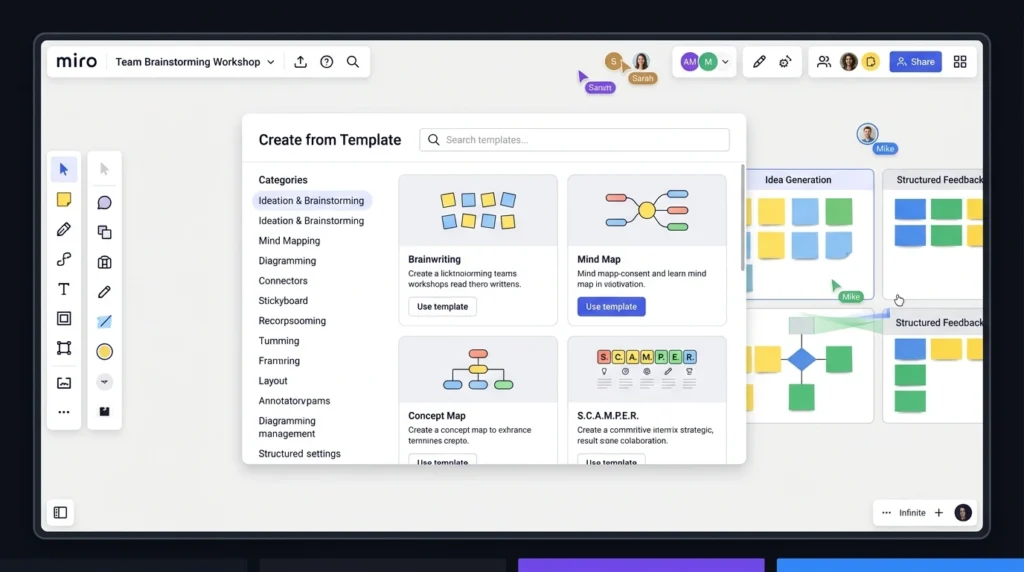
If your team needs a digital room where everyone can throw ideas onto the wall, Miro is the stronger choice. It feels less like a simple drawing application and more like a large workspace designed around collaborative activities. When you start a new board, you can choose from templates instead of building the entire structure from scratch.
You can find frameworks for brainstorming, mind mapping, retrospectives, customer journeys, flowcharts, and other common workflows. That is useful when you are running a remote workshop because you can prepare the board before the meeting and then let participants add sticky notes, move objects, and contribute ideas.
Miro also goes considerably further than basic online whiteboard tools when it comes to organizing a complicated board. You can create sections, connect objects, add comments, and combine different content types on one canvas. Another advantage is its broader integration ecosystem. If your team already uses several business applications, Miro can become part of that workflow rather than sitting separately as a drawing tool. The trade-off is complexity. Excalidraw can feel almost instant, while Miro gives you considerably more to learn.
Pros
- Excellent for structured team workshops and brainstorming.
- Large ecosystem of templates, integrations, and collaboration features.
Cons
- The interface can feel overwhelming for simple sketches.
- Some advanced collaboration and workspace capabilities depend on your plan.
Pricing: Miro offers a Free plan. Its paid plans include Starter at $8 per user/month when billed annually and Business at $16 per user/month when billed annually. Enterprise pricing is custom. Check the latest details on Miro’s pricing page before purchasing.
Excalidraw: Best Visual Collaboration Tool for Quick Diagrams
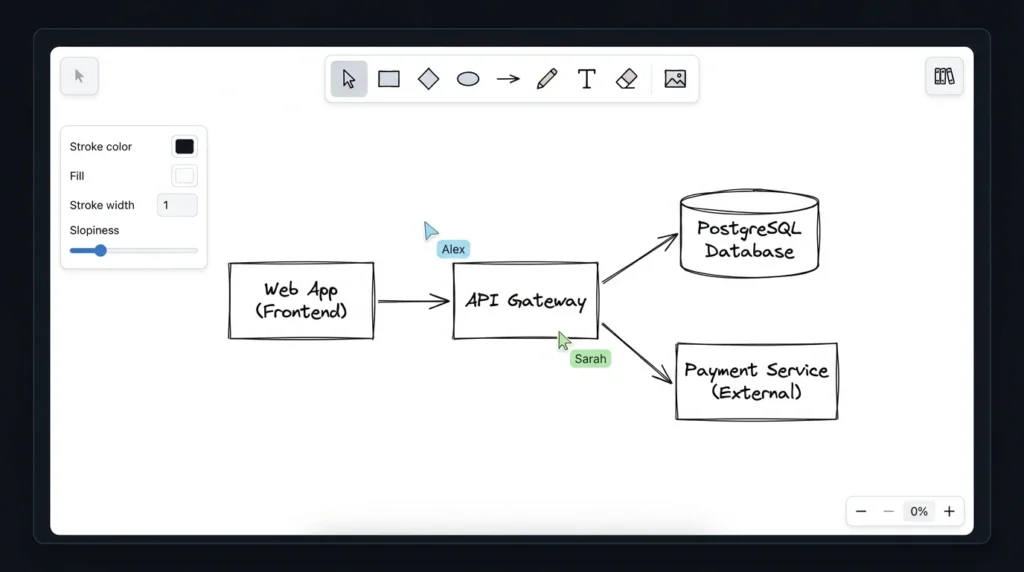
Excalidraw takes almost the opposite approach. Open Excalidraw and you are presented with a canvas where you can immediately draw rectangles, arrows, circles, text, and freehand shapes. The deliberately rough visual style is one of its biggest strengths. A box drawn in Excalidraw looks like a sketch rather than a polished corporate diagram. That makes it particularly useful when you are explaining an early idea and do not want people to mistake a rough concept for a finished design.
For developers and designers, this can be surprisingly effective. You might sketch an application architecture, draw a user flow, or explain how several components communicate without spending time making everything visually perfect. The collaborative whiteboard experience is also straightforward. You can share a drawing and work with other people on the same canvas instead of repeatedly exporting screenshots whenever someone needs to provide feedback.
Another major distinction is its open-source foundation. Developers who want more control over the technology behind their drawing experience may find Excalidraw particularly attractive. If your priority is quick visual communication rather than running an entire workshop, Excalidraw is difficult to overlook.
Pros
- Extremely quick for diagrams and informal visual explanations.
- Open-source foundation gives developers additional flexibility.
Cons
- Fewer built-in business collaboration features than Miro.
- Less suitable for complex workshop management and large project boards.
Pricing: The core Excalidraw editor is available free to use. Additional hosted collaboration and workspace capabilities are available through Excalidraw’s paid offerings. Check Excalidraw’s official pricing information for current plans and limits.
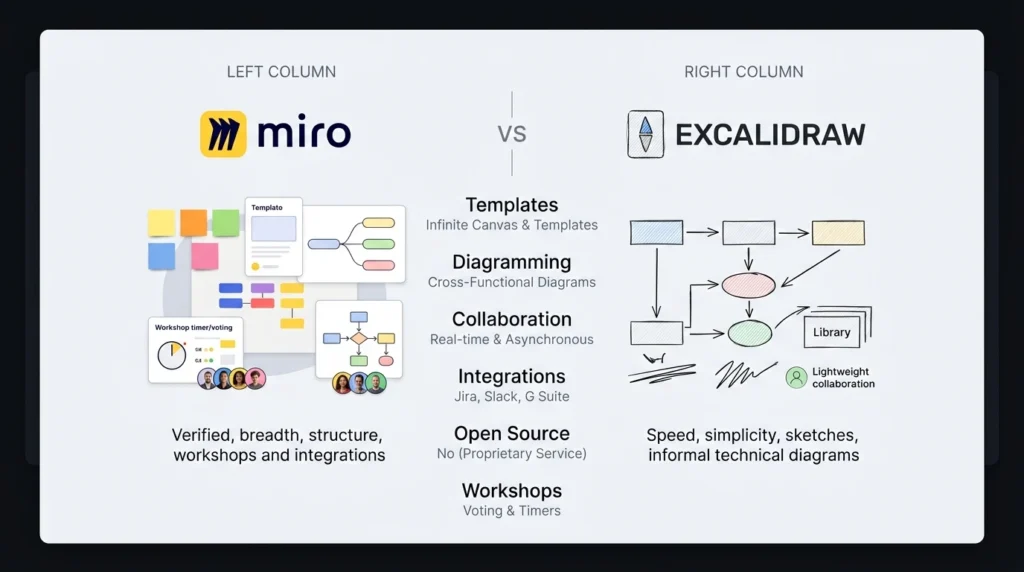
Miro vs Excalidraw: Feature Comparison
| Feature | Miro | Excalidraw |
| Real-time collaboration | Yes | Yes |
| Online whiteboarding | Extensive | Focused |
| Templates | Large template library | Limited |
| Sticky notes | Yes | Yes |
| Freehand drawing | Yes | Yes |
| Flowcharts | Yes | Yes |
| Mind maps | Yes | More manual |
| Comments | Yes | More limited depending on setup |
| Integrations | Extensive | More limited |
| Open source | No | Yes |
| Best workflow | Team workshops and planning | Diagrams and quick visual explanations |
| Learning curve | Moderate | Low |
Which One Is Better for Different Users?
The answer depends heavily on what you expect from your visual collaboration software.
Choose Miro if You Work With Teams
Miro makes more sense when multiple people need to contribute to a structured activity. Product teams can use it for research synthesis, project planning, user journeys, retrospectives, and brainstorming sessions. Educators can also use a shared board to organize activities and encourage students to contribute visually. It is the better option if your organization wants a whiteboard that can support more than simple drawing. If you are researching other productivity and collaboration software, you can also explore our related comparison of Google Workspace vs LibreOffice.
Choose Excalidraw if You Want Speed
Excalidraw wins when the task is simple: draw an architecture diagram, explain an idea, sketch a workflow, or collaborate on a rough concept. You do not need a sophisticated workshop template when all you want is a few boxes connected by arrows. In those situations, Miro can feel like bringing a conference-room projector to a sticky-note fight. That simplicity is exactly why developers, designers, students, and technical writers may prefer it.
For Developers and Technical Teams
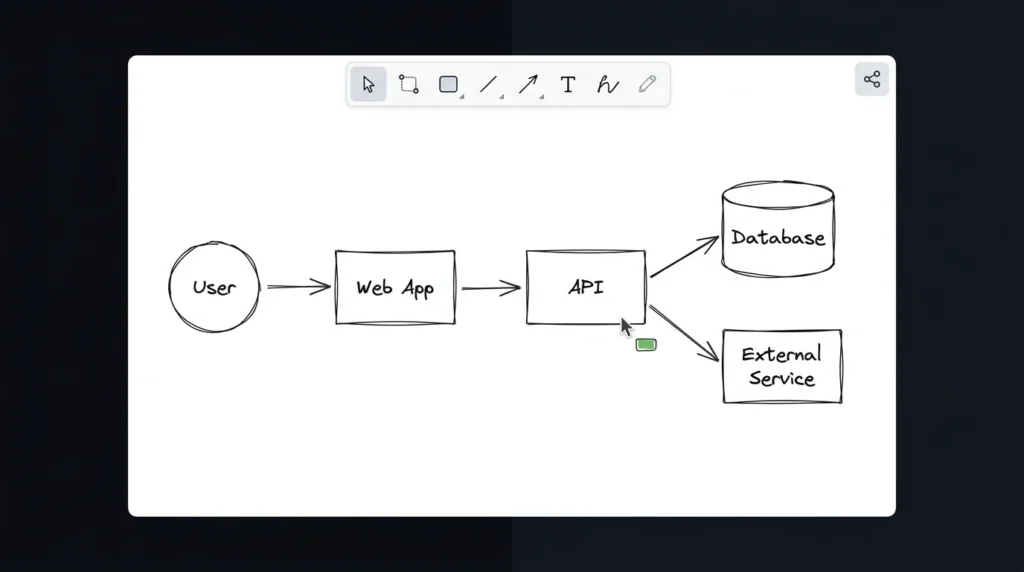
Excalidraw has a particularly strong appeal here. Its sketch-like diagrams work well for system architecture, application flows, and early technical discussions. You can focus on the relationship between components rather than polishing the presentation. Miro is still useful for larger product-development processes where diagrams are only one part of the team’s workspace.
Final Verdict: Miro or Excalidraw?
If you need a full workspace for brainstorming, workshops, planning, and team collaboration, Miro is the more capable overall choice. If you mainly need a fast, uncluttered canvas for diagrams and sketches, Excalidraw is the easier pick. Both tools offer free ways to get started, so you can test your actual workflow before committing to a paid plan. The bigger question is not which tool has more features. It is which of these visual collaboration tools makes your team communicate ideas more clearly. So, which approach fits your team better: a feature-rich collaborative workspace like Miro, or the focused simplicity of Excalidraw?
Frequently Asked Questions
Is Miro better than Excalidraw?
Not universally. Miro is the better option if you need a broad collaborative workspace with templates, structured workshops, project planning, and integrations. Excalidraw is better when you want a lightweight canvas for diagrams and visual explanations. Your choice should depend on whether you need a complete collaboration environment or mainly a fast drawing surface.
Which is better for online whiteboard work?
For large collaborative sessions, Miro generally offers the more complete set of online whiteboard tools. Its templates and organizational features make it easier to run structured exercises with a team. For a quick sketch or technical diagram, however, Excalidraw can be faster because fewer controls compete for your attention.
Is Excalidraw free?
Yes. The core Excalidraw drawing experience is available for free, while additional hosted collaboration and workspace features can be offered through its paid services. Its open-source nature is another reason developers may prefer it, especially when flexibility and customization matter.
Can You Use Both?
Absolutely. You do not necessarily have to choose one tool forever. You could use Miro for large planning sessions and Excalidraw for quick architecture diagrams or informal explanations. Sometimes the best whiteboard is simply the one that gets you drawing fastest.