Apple’s iOS 27 Scam Protection: How to Turn On the New Defences
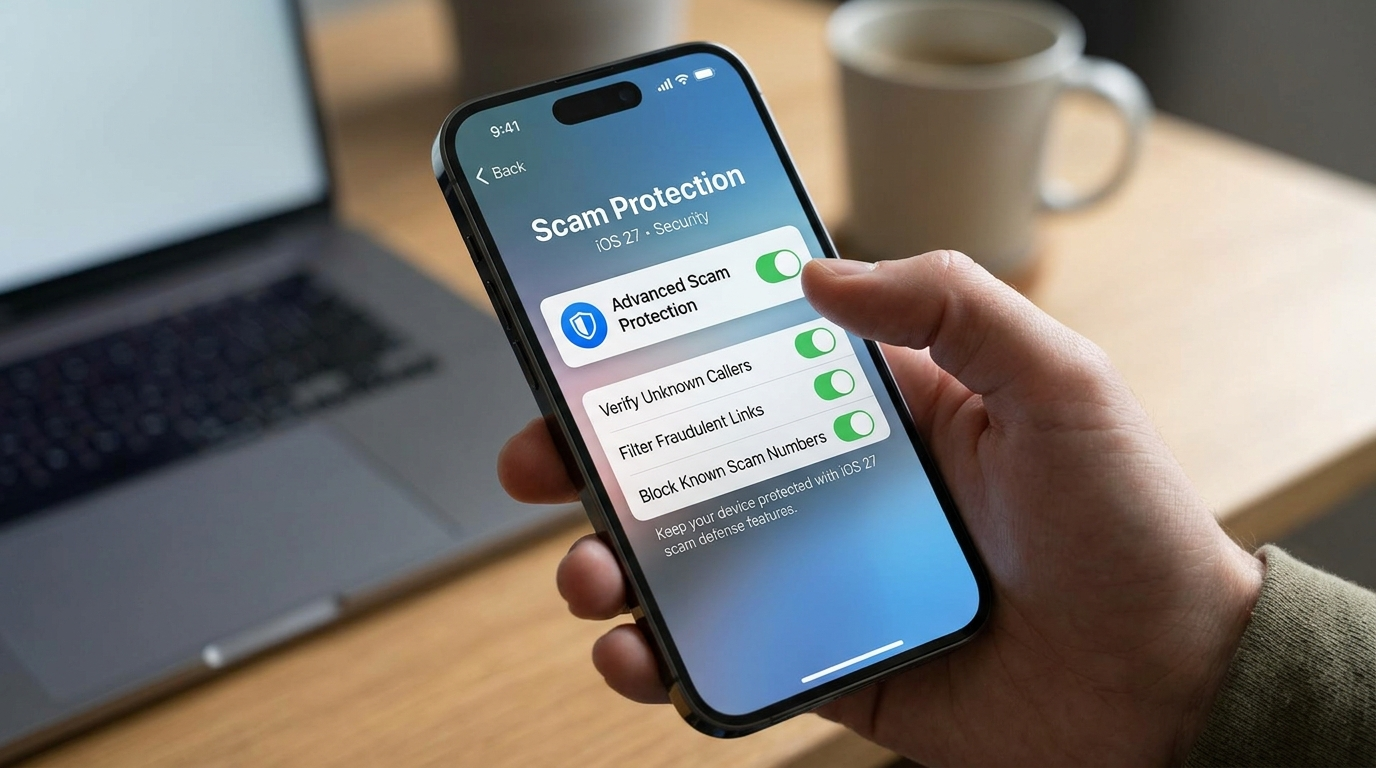
Scammers are getting better at sounding like your bank, a government agency or someone you trust. Apple has quietly added a defence to the latest iPhone software that can help stop them at the moment it matters most. The catch is that most people do not know it exists, because it is switched off by default. Here is how iOS 27 scam protection works, how to turn it on in under a minute, and what it can and cannot do to stop iPhone scam calls and messages from costing you money.
What Is Impersonation Risk Detection?
The feature is called Impersonation Risk Detection, and it arrived with iOS 27 and iPadOS 27. It targets social engineering scams, where criminals pretend to be a trusted organisation or person to trick you into sending money or handing over account access.
Here is how it works. When you try to do something sensitive inside a supported app, such as sending a payment, changing a password or sharing account details, the app can ask your iPhone for a scam risk check. Your iPhone looks at signals such as how and when you are interacting, the context, and basic sensor data, then returns one of three risk levels: unknown, medium or high.
The app can then respond, for example by showing a warning, adding a delay or asking for extra identity checks before the action goes through.
Built with privacy in mind
Apple says the analysis happens on your device, and that it does not read the content of your photos, messages or emails. The app only receives the final risk level, not your personal data, as Tom’s Guide explained. Because it shares limited signals with app developers, Apple leaves it off until you choose to turn it on.
How to Turn It On
You will need an iPhone running iOS 27 or an iPad running iPadOS 27. iOS 27 supports the iPhone 11 and later, plus the second-generation iPhone SE and newer. Then:
- Open Settings.
- Scroll down and tap Privacy and Security.
- Tap Impersonation Risk Detection.
- Turn on Share with App Developers.
You may need to be signed in with your Apple Account. Apple notes that changes can take up to 24 hours to take effect, as Mac Observer reported. From the same screen, you can later see which apps have used the feature and turn it off for individual apps.
Apple’s important warning
Apple’s support page includes a blunt message: if someone tells you to turn this feature off, you might be the victim of a scam. The 24-hour delay is deliberate. It means a scammer cannot pressure you into switching it off and then immediately empty your account.
What It Can and Cannot Do
This is a helpful extra layer, but it has limits.
- It only works in supported apps. Apple has not named participating apps, and many banking and payment apps may take time to adopt it.
- It does not block calls or texts. It works at the moment of a risky action, not when a scammer first contacts you.
- An “unknown” result is not a guarantee. It simply means no warning signs were found.
Even so, switching it on costs nothing and could provide a crucial pause during a high-pressure scam.
Other iPhone Settings Worth Using
Combine Impersonation Risk Detection with other built-in protections:
- Call screening for unknown numbers, introduced in iOS 26, which asks callers who they are before your phone rings.
- Stolen Device Protection, which adds extra checks for sensitive changes when you are away from familiar locations.
- Silence Unknown Callers, if scam calls are a constant problem.
Why This Matters in Australia
Impersonation scams, where criminals pose as banks, government departments or delivery companies, cost Australians enormous sums each year. If you think you have been targeted, contact your bank immediately using a number you find yourself, and report it to Scamwatch. AI is making scams more convincing, as our look at Grok Voice 3.0 and AI phone agents explains, and hype-driven launches attract fraud too, as our iPhone Duo stock guide warns. Our how to spot common scams in Australia guide covers the warning signs.
One Minute to a Safer iPhone
Impersonation Risk Detection will not stop every scam, but it adds a smart pause at the moment money or access is on the line. Turn it on today, and remember Apple’s rule: anyone who asks you to switch it off is someone to distrust.
Frequently Asked Questions
Is Impersonation Risk Detection on by default?
No. You need to turn on Share with App Developers in Privacy and Security settings.
Does Apple read my messages to detect scams?
Apple says it does not analyse the content of your photos, messages or emails.
Which apps support it?
Apple has not published a list. Support depends on each app’s developer adding it.
Why does it take 24 hours to change?
The delay helps stop scammers from pressuring you to switch it off and act immediately.